
Marketing video demand has outgrown the old edit queue. One webinar can turn into several shorts, a product launch may need vertical cuts, and every channel expects captions, clean audio, and the right size.
I built this ranking for content leads, social teams, and agencies that need to publish more video without adding a full post-production team. I focused on speed-to-publish, not cinema finishing.

AI video tools can shorten the path from long recording to channel-ready clips.
Key Takeaways
OpusClip is my top pick for fast social repurposing. It combines clipping, animated captions, AI B-roll, reframing, scheduling, and basic analytics in one workflow.
Adobe Premiere Pro is for professional editors. Its AI tools help with transcripts, captions, rough cuts, dialog cleanup, and full timeline control.
Descript is excellent for talk-heavy content. Edit-by-transcript, filler-word removal, and Studio Sound make webinars, podcasts, and interviews easier to polish.
CapCut is a strong free social-first option. Auto captions, text-to-speech, templates, and long-video-to-shorts tools support fast iteration.
DaVinci Resolve is strong when finishing quality matters. Magic Mask, Smart Reframe, Voice Isolation, captions, and color tools fit heavier workflows.
Runway is the creative effects pick. I liked it most for browser-based inpainting, object removal, and generative B-roll tests.
Filmora is beginner-friendly. AI Copilot, Smart Cutout, Audio Denoise, captions, and templates lower the learning curve for small teams.
How I tested these AI video editing tools
Speed-to-first-draft. I checked how quickly each tool could turn a 30 to 60 minute talk into usable short clips with captions, framing, and basic cleanup.
Caption and transcript workflow. I looked for captions that were easy to generate, edit, style, and export without another app.
Reframing and resizing. One source file often needs 9:16, 16:9, and 1:1 outputs. I favored tools that made those versions predictable.
Audio cleanup. I tested practical tasks like clearer dialog, noise reduction, and filler-word removal where the product supports it.
Publish friction. I gave extra weight to tools that reduce handoffs between editing, exporting, scheduling, and basic performance review. I also considered how each workflow could support AI search visibility once teams publish more video.
OpusClip
OpusClip pros
One-click long-to-short clipping for webinars, podcasts, and recorded events
Customizable animated captions that can align with brand styles
AI Reframe for 9:16, 16:9, and 1:1 outputs
AI B-roll, AI voice-over, speech enhancement, and filler-word removal
Built-in social media calendar for publishing and scheduling
Basic cross-platform analytics inside the editing workflow
Designed for teams that need social-ready clips without advanced editing skills
OpusClip cons
Not a full non-linear editor for complex multi-track campaign films
AI B-roll still benefits from human review before publishing
Works best when the source footage has clear speech and strong moments
My experience with OpusClip
OpusClip earned the first slot because it compressed the workflow I care about: clip, caption, reframe, and publish. I did not have to build every short from scratch or move between several tools.
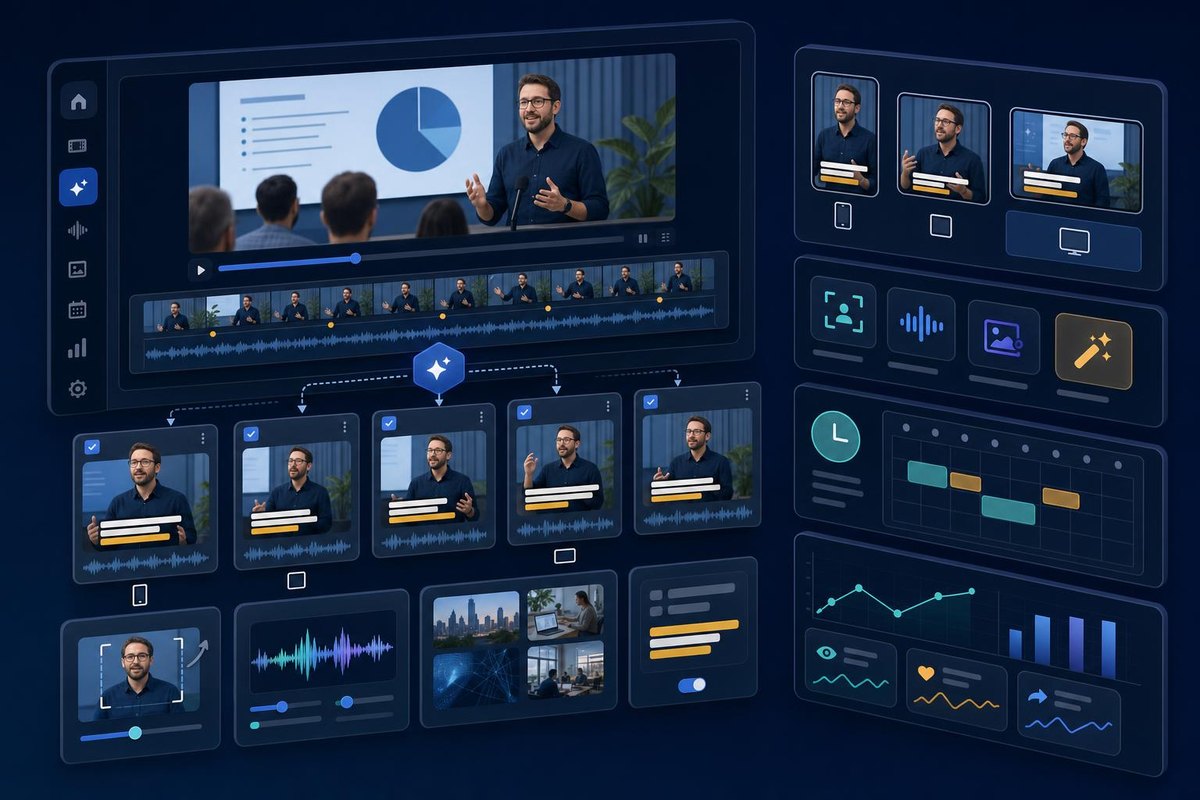
In my test, OpusClip’s AI video editor turned a long webinar into social-ready clips with animated captions, AI B-roll, and automatic reframing.
The captions were the biggest time saver. I could style them for a brand look, then use AI Reframe for vertical, horizontal, and square versions without manual crop work.
I also liked that scheduling and basic analytics sit close to the edit. For a social team, this reduces the handoff between cutting and publishing.
OpusClip price
OpusClip offers a freemium model with paid tiers for teams that need more usage and workflow features. Pricing, limits, and included capabilities can change, so check the current page before budgeting.
Adobe Premiere Pro
Adobe Premiere Pro pros
Text-Based Editing for rough cuts from transcripts
Speech to Text for transcripts and captions in many languages
Enhance Speech for one-click dialog clarity control
Auto Reframe for adapting edits to different aspect ratios
Deep ecosystem with After Effects, Frame.io, and robust exports
Adobe Premiere Pro cons
Steeper learning curve than social-first tools
Subscription cost can be high for casual users
More editor than many quick-clip workflows need
My experience with Adobe Premiere Pro
Premiere Pro feels like a steady choice when a brand video needs real editorial control. The AI features do not replace the timeline, but they reduce slow setup work.
Text-Based Editing is useful for interview edits. I could scan the transcript, assemble a rough cut from words, then move into the timeline for pacing and graphics.
Enhance Speech is practical for marketing recordings captured outside a studio. I would choose Premiere when the final cut needs polish, approvals, and detailed control.
Adobe Premiere Pro price
Premiere Pro is sold as a subscription, with individual and business options available. Larger organizations can look at enterprise licensing, and current pricing should be confirmed with Adobe.
Descript
Descript pros
Edit video by editing the transcript
Filler-word removal for faster cleanup
Studio Sound for improving spoken audio
Screen recording for tutorials and walkthroughs
Can publish directly or export to platforms such as YouTube and TikTok
Descript cons
Not built for advanced VFX or finishing
Timeline precision takes a little practice
Some workflows depend heavily on cloud processing
My experience with Descript
Descript is the tool I reach for when the edit is mostly speech. Cutting a webinar or podcast by deleting text feels natural, and it is much faster than scrubbing a long timeline.
Filler-word removal and Studio Sound are useful when speed matters more than a perfect studio mix. It is less complete than OpusClip for end-to-end repurposing, but excellent for talk-first editing.
Descript price
Descript offers free and paid tiers, with usage and export options varying by plan. Check current details if you need team features or higher publishing volume.
CapCut
CapCut pros
Auto Captions generated from spoken audio
Online text-to-speech with multilingual AI voices
Long-video-to-shorts tool in its AI auto editor workflow
Large template and effects library for social formats
Good mobile and web workflow for quick edits
CapCut cons
Advanced editorial control is lighter than pro tools
Template-heavy videos can look generic without customization
My experience with CapCut
CapCut is fast, approachable, and built around social publishing habits. Auto captions are easy to add, and templates help when a team needs a quick concept instead of a blank timeline.
The text-to-speech tool is useful for narration drafts, especially when testing hooks. For stricter brand systems, I would spend extra time customizing the template look.
CapCut price
CapCut has a free entry point with optional paid resources and upgraded features. Plans and included assets change, so confirm the current structure before standardizing it for a team.
DaVinci Resolve
DaVinci Resolve pros
Magic Mask for isolating people and objects
Smart Reframe for adapting aspect ratios
Voice Isolation for cleaner dialog
Auto Caption in Studio for timed subtitle tracks
Excellent color tools for finished campaign work
DaVinci Resolve cons
Steeper learning curve than lightweight social editors
Some AI features require the Studio version
Heavier projects can need stronger hardware
My experience with DaVinci Resolve
DaVinci Resolve is not the fastest path for a simple captioned short, but it helps when footage needs finishing. Color, audio, and editorial control all live in one workspace.
Magic Mask and Smart Reframe were the most useful AI features for marketing work. They help with common problems, like isolating a subject or adapting a master edit for vertical delivery.
DaVinci Resolve price
DaVinci Resolve has a capable free version, while DaVinci Resolve Studio is available as a paid upgrade. Current pricing should be checked before purchase.
Runway
Runway pros
Browser-based inpainting for removing unwanted objects across clips
Text-to-video and image-to-video generation with Gen-3 Alpha
Creative controls such as Motion Brush, camera controls, and Director Mode
Useful for quick visual concepts and B-roll experiments
Runway cons
Generative results can vary from prompt to prompt
Not a full traditional editing suite
Model and clip-length constraints may affect workflows
My experience with Runway
Runway feels less like a classic editor and more like an AI production assistant. I liked it most for cleanup tasks and visual experiments that would otherwise need specialist help.
The inpainting workflow is practical when a shot has a distracting object. I would pair Runway with another editor rather than use it as the whole content pipeline.
Runway price
Runway uses plans and usage models that can change as its generation tools evolve. Review the current tiers if you expect frequent exports or heavier generative use.
Wondershare Filmora
Wondershare Filmora pros
AI Copilot Editing for guided editing help
AI Smart Cutout for background or object removal
AI Audio Denoise for clearer sound
Automatic captions for social videos
Friendly interface with brand-friendly templates
Wondershare Filmora cons
Fewer pro finishing tools than Premiere or Resolve
Some advanced AI effects may depend on credits or plan access
Performance can vary by system and project size
My experience with Wondershare Filmora
Filmora is an easy recommendation for marketers who want a familiar editor with helpful AI features layered in. The interface is less intimidating than a pro NLE, which matters for small teams.
AI Copilot, Smart Cutout, and Audio Denoise cover common beginner pain points. I would use it for simple brand videos, quick social edits, and teams that value ease over deep control.
Wondershare Filmora price
Filmora offers a free trial and paid subscriptions, with features varying by plan and platform. Check current plan details before assuming a specific AI feature is included.